
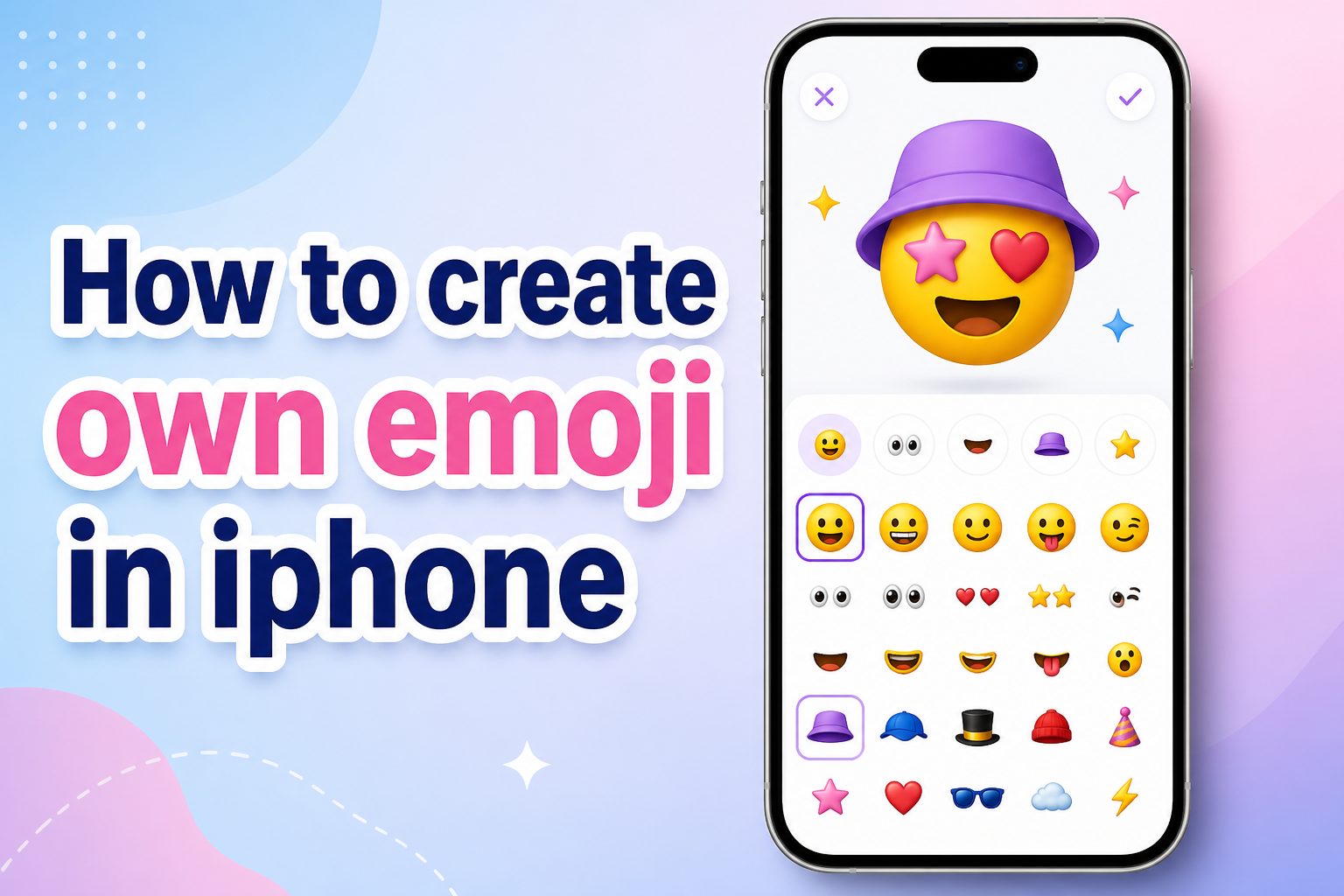
If you want to know how to create own emoji in iphone, the easiest answer depends on what kind of “emoji” you mean. On modern iPhones, you can create a custom AI emoji with Genmoji if your device supports Apple Intelligence, or you can design a personal avatar-style emoji with Memoji in Messages. You can also save custom sticker-style images and use them like emoji in chats. This guide explains the differences clearly, shows the practical steps, and helps you choose the best option for your iPhone. You will learn what Genmoji and Memoji do, how to create them, where they appear, how to use them in Messages, and how to avoid common mistakes that make custom emoji look unclear or hard to find later.
What Creating Your Own Emoji On iPhone Means
Creating your own emoji on iPhone usually means making a personalized visual expression that you can send in conversations. It may be a Genmoji, a Memoji, or a sticker, depending on your device and iOS features.
1. Genmoji Creates Custom AI Emoji
Genmoji lets supported iPhones create original emoji-style images from a description, existing emoji ideas, concepts, or people from your Photos library. It is useful when the standard emoji keyboard does not have the exact expression, object, mood, or personal joke you want to send.
2. Memoji Creates A Personal Avatar
Memoji is different because it creates a character that looks like you or someone you invent. You can choose skin tone, hairstyle, eyes, glasses, clothing, and other details, then use automatically generated poses and expressions in Messages and supported apps.
3. Stickers Work Like Reusable Emoji
Custom stickers are not official Unicode emoji, but they behave similarly in daily messaging. You can save Genmoji and other cutout images as stickers, then send them in chats, place them on messages, or use them for quick reactions.
4. Not Every iPhone Has The Same Tools
Some emoji creation features depend on your iPhone model, iOS version, language, region, and Apple Intelligence availability. If you do not see Genmoji, your phone may still support Memoji and stickers, so you still have good personalization options.
5. Custom Emoji Are Best For Expression
The main value of custom emoji is expression. Instead of choosing a generic smile, heart, or reaction, you can create something specific to your personality, friend group, hobby, pet, work chat, or recurring inside joke.
6. They Are Saved For Future Use
Once you create a Genmoji or Memoji, it can be saved for reuse. This matters because you do not need to recreate the same idea every time, and your favorite custom emoji can become part of your regular messaging style.
Requirements To Create Custom Emoji On iPhone
Before you start, check the basics. Most problems happen because the iPhone is not updated, Apple Intelligence is unavailable, or the user is looking in the wrong keyboard area.
- Updated iOS: Use the latest iOS version available for your iPhone so Genmoji, Memoji, keyboard, and sticker features work as expected.
- Supported Device: Genmoji requires Apple Intelligence support, while Memoji works on a wider range of iPhones through Messages.
- Emoji Keyboard: Make sure the emoji keyboard is enabled so you can access emoji, stickers, Memoji, and Genmoji from text fields.
- Apple Intelligence: If you want Genmoji, Apple Intelligence must be available and turned on for your device, language, and region.
- Photos Setup: For person-based Genmoji, named people in Photos make it easier to create personalized results from your library.
Steps To Create Genmoji On iPhone
If your iPhone supports Genmoji, this is the most direct way to create your own emoji from an idea. The process happens from the emoji keyboard inside a text field.
- Open A Text Field: Start in Messages or another supported app where the keyboard appears.
- Open The Emoji Keyboard: Tap the emoji button or keyboard switch key to move from letters to emoji.
- Choose Genmoji: Tap the Genmoji option near the top of the onscreen keyboard when it appears.
- Describe The Emoji: Type a clear prompt such as a happy cactus, sleepy robot, or birthday dog.
- Add Details: Include mood, color, object, outfit, action, or setting if you want a more specific result.
- Review Variations: Swipe or preview different versions until one matches your idea closely.
- Save And Send: Tap the option to finish, then add it to your message or use it later from stickers.
- Edit If Needed: Change your description or remove extra concepts if the design feels too busy or inaccurate.
How To Create Memoji On iPhone
Memoji is the best option when you want a personal avatar instead of a one-time custom emoji. It is especially useful for reactions, profile-like expressions, and animated messages.
1. Open Messages First
Go to the Messages app and open an existing conversation or start a new one. Memoji creation begins inside Messages because Apple connects your avatar, expressions, stickers, and animated recordings directly to the messaging experience.
2. Tap The Add Button
Inside a conversation, tap the add button and look for Memoji. You may need to swipe through the available message apps or keyboard tools, especially if you have many iMessage features installed.
3. Start A New Memoji
Choose the option to add a new Memoji. This opens the editor where you can build a character from scratch instead of using Apple’s default options or previously saved designs.
4. Customize The Face And Style
Select skin tone, hairstyle, eyes, eyebrows, nose, lips, facial hair, eyewear, headwear, clothing, and other details. Take time here because small changes make the Memoji feel more personal and recognizable.
5. Save The Finished Memoji
When the design looks right, tap Done to save it. Your iPhone will automatically generate many sticker-style expressions, so one Memoji can give you happy, surprised, laughing, sad, and playful options.
6. Edit Or Duplicate Later
You can return to your Memoji later to edit, duplicate, or delete it. Duplicating is useful when you want a similar avatar with a different outfit, hairstyle, seasonal look, or mood.
Genmoji And Memoji Compared
Genmoji and Memoji both help you personalize conversations, but they solve different problems. Choosing the right one saves time and gives better results.
1. Genmoji Is Idea Based
Use Genmoji when you want to create something from a description, such as a dancing taco, a moon wearing sunglasses, or a friend celebrating. It is flexible because your idea can be specific and imaginative.
2. Memoji Is Character Based
Use Memoji when you want a consistent character that represents you or another made-up person. It is better for repeated identity-style reactions than for creating random objects, scenes, or unusual combinations.
3. Genmoji Needs Apple Intelligence
Genmoji depends on Apple Intelligence availability, so not every iPhone will show it. If your model or region does not support it, Memoji and stickers are still practical alternatives for personalized messaging.
4. Memoji Has More Manual Control
Memoji gives you direct control over appearance choices such as hairstyle, glasses, face shape, and accessories. Genmoji is more prompt-driven, so results can vary even when your description is clear.
5. Genmoji Works Well For Novelty
Genmoji is ideal for moments when normal emoji feel limited. It can create playful combinations, special event reactions, themed images, and funny visuals that would never exist in the standard emoji set.
6. Memoji Works Well For Consistency
Memoji is better when you want one recognizable character across many expressions. Friends can quickly learn that the avatar represents you, which makes it useful for ongoing chats and personal communication.
Examples Of Custom Emoji Ideas On iPhone
Good custom emoji ideas are clear, simple, and emotionally useful. Start with everyday reactions before trying complicated scenes.
1. A Birthday Pet Emoji
Create a Genmoji of a dog wearing a birthday hat or a cat holding a tiny cake. This works well for family chats, pet lovers, birthday greetings, and quick reactions that feel warmer than a standard party emoji.
2. A Work Mood Emoji
A tired laptop, focused coffee cup, or calendar with a stressed face can make workplace messages lighter without being unprofessional. Keep these designs friendly, especially if you plan to use them in team chats.
3. A Personal Celebration Emoji
Use Genmoji to create a celebration emoji connected to a hobby, achievement, or inside joke. For example, a running shoe with confetti can fit a race finish better than a generic trophy or medal.
4. A Travel Reaction Emoji
Try a suitcase smiling, a beach umbrella dancing, or a plane with sleepy eyes. Travel-themed custom emoji are useful before trips, during vacations, or when reacting to photos from friends and family.
5. A Food Personality Emoji
Food emoji are easy to personalize because they are recognizable. A spicy pizza, cheerful avocado, or dramatic cupcake can express mood, cravings, humor, or plans without needing a long message.
6. A Memoji Outfit Variant
Duplicate your Memoji and create versions for work, weekends, holidays, or special events. This gives you a familiar avatar with fresh context, while keeping your personal style consistent across different conversations.
Common Custom Emoji Mistakes To Avoid
Creating your own emoji on iPhone is simple, but small mistakes can make the result confusing, cluttered, or difficult to reuse later.
1. Writing Prompts That Are Too Long
A very long Genmoji description can create mixed results because too many details compete for attention. Keep the core idea clear first, then add one or two useful details such as color, emotion, action, or accessory.
2. Making The Emoji Too Detailed
Emoji are usually viewed small, so tiny details may disappear. A simple object with a clear expression often works better than a crowded scene with many characters, background elements, and small decorations.
3. Ignoring Device Compatibility
If Genmoji does not appear, do not assume your iPhone is broken. Check whether your model, iOS version, Apple Intelligence settings, language, and region support the feature before spending time troubleshooting the wrong issue.
4. Forgetting To Save Favorites
When you create something useful, save it properly so you can find it again in stickers. Otherwise, you may lose time recreating the same idea or searching through recent messages for an old version.
5. Using Personal Photos Carelessly
When making person-based Genmoji, be thoughtful about privacy and context. A funny image may be fine with close friends but less appropriate in school, work, public groups, or conversations where someone did not expect to be personalized.
6. Overusing Custom Emoji In Every Message
Custom emoji are fun, but too many can make conversations harder to read. Use them where they add emotion, humor, or clarity, and keep important messages clear with normal text when details matter.
Best Practices For Custom Emoji On iPhone
The best custom emoji are easy to recognize, quick to understand, and useful in real conversations. These habits improve your results.
1. Start With A Clear Emotion
Decide whether the emoji should feel happy, confused, proud, tired, surprised, or playful. Emotion gives the design a purpose, and it helps the person receiving it understand your tone instantly.
2. Use Simple Visual Ideas
Choose one main subject and one clear action or mood. A smiling cactus with sunglasses is easier to read than a cactus on a mountain holding coffee while fireworks explode behind it.
3. Create Reusable Reactions
Think about what you send often, such as thanks, congratulations, yes, no, sorry, tired, excited, or laughing. Custom emoji become more valuable when they match real messages you send every week.
4. Keep Memoji Recognizable
If your Memoji represents you, choose features people associate with you, such as hairstyle, glasses, facial hair, or favorite accessories. Recognition matters more than perfect detail because the avatar appears at small sizes.
5. Review Before Sending
Look at the final emoji in the message area before sending it. Check whether it looks clear, appropriate, and connected to the conversation, especially if it includes a person, joke, or emotional reaction.
6. Update Your Emoji Over Time
Your style, hairstyle, favorite hobbies, and messaging habits can change. Edit your Memoji or create new Genmoji when older versions no longer feel accurate, useful, or fun to send.
Practical Uses For iPhone Custom Emoji
Custom emoji are not just for fun. They can make everyday communication more expressive, personal, and efficient.
1. Family Group Chats
Custom emoji work well in family chats because they can include pets, celebrations, familiar jokes, or gentle reactions. They make quick messages feel more personal without requiring everyone to type long responses.
2. Friend Reactions
Friends often share humor, habits, and references that standard emoji cannot capture. A custom Genmoji can turn an inside joke into a reusable reaction that everyone understands immediately.
3. Birthday And Holiday Messages
Instead of sending only a cake or balloon emoji, you can create a themed Genmoji for birthdays, holidays, graduations, or parties. It makes greetings feel more thoughtful while still staying casual and quick.
4. Personal Branding
If you use your iPhone for networking or creative communication, a consistent Memoji can become a recognizable personal touch. Keep it tasteful, simple, and aligned with how you want people to remember you.
5. School Or Club Chats
Custom emoji can help small groups celebrate wins, organize events, or react to shared moments. Use designs that are inclusive and easy to understand so they do not confuse people outside the original joke.
6. Quick Emotional Replies
Sometimes a custom emoji says enough by itself. A tired coffee cup, excited Memoji, or cheering pet can replace a short reaction while still showing tone more clearly than a plain thumbs-up.
Troubleshooting iPhone Emoji Creation
If you cannot create your own emoji on iPhone, the issue is usually related to settings, compatibility, or where you are trying to access the feature.
- Genmoji Missing: Check whether your iPhone supports Apple Intelligence and whether the feature is turned on in settings.
- Keyboard Not Showing: Make sure the emoji keyboard is enabled and try opening a text field in Messages first.
- Person Not Found: Name the person or pet in Photos before trying to create a personalized Genmoji from your library.
- Results Look Wrong: Shorten your description and focus on one subject, one mood, and one important detail.
- Memoji Not Syncing: Check iCloud settings if you want your Memoji available across compatible Apple devices.
Future Of Custom Emoji On iPhone
Custom emoji on iPhone will likely keep becoming more personal as Apple improves intelligence features, keyboard tools, stickers, and messaging options.
Genmoji already shows the direction clearly. Instead of waiting for official emoji updates, users can create expressions based on their own words, relationships, events, and visual preferences.
Memoji will remain useful because people still want a consistent personal avatar. Even as AI tools improve, a stable character that looks like you has a different purpose from a one-time generated emoji.
Stickers may also become more central to daily chats. Many users already treat stickers, Genmoji, and Memoji as part of the same expression system, even though they are technically different formats.
The most useful approach is to learn all three options. When you know when to use Genmoji, Memoji, and stickers, you can create custom reactions that feel natural instead of forced.
Frequently Asked Questions
Can I Create My Own Emoji On Any iPhone?
You can create Memoji on many iPhones, but Genmoji requires a supported iPhone with Apple Intelligence available and turned on. If your phone does not support Genmoji, you can still create Memoji and custom stickers for a similar personalized messaging experience.
Is Genmoji The Same As Memoji?
No, Genmoji and Memoji are different. Genmoji creates custom emoji-style images from prompts, concepts, existing emoji, or people. Memoji creates a reusable personal avatar with different expressions, poses, and sometimes animated recordings on supported devices.
Where Are My Created Genmoji Saved?
Genmoji you create are saved with your stickers, so you can reuse them from the sticker area of the emoji keyboard. If you cannot find one, open the emoji keyboard, move to stickers, and look through your saved items.
Why Do I Not See Genmoji On My iPhone?
You may not see Genmoji because your iPhone model, iOS version, language, region, or Apple Intelligence settings do not support it. Update iOS first, then check Apple Intelligence availability and make sure you are using a supported text field.
Can I Make An Emoji Of A Real Person?
On supported iPhones, Genmoji can create a personalized result based on people from your Photos library when they are identified properly. Use this carefully and respectfully, especially before sharing images of friends, family members, children, or coworkers in group chats.
Can I Delete A Custom Emoji Later?
Yes, you can delete saved Genmoji from the sticker area by touching and holding the item, then choosing the delete option. You can also edit, duplicate, or delete Memoji from the Memoji controls inside Messages whenever you want to update your collection.
Conclusion
Creating your own emoji on iPhone is easiest when you know which tool fits your goal. Genmoji is best for custom AI emoji, Memoji is best for a personal avatar, and stickers are useful for saving reusable reactions.
Start with simple ideas, keep your designs clear, and use custom emoji where they add real emotion or personality. With the right setup and a little practice, your iPhone can turn everyday messages into more personal, expressive conversations.