
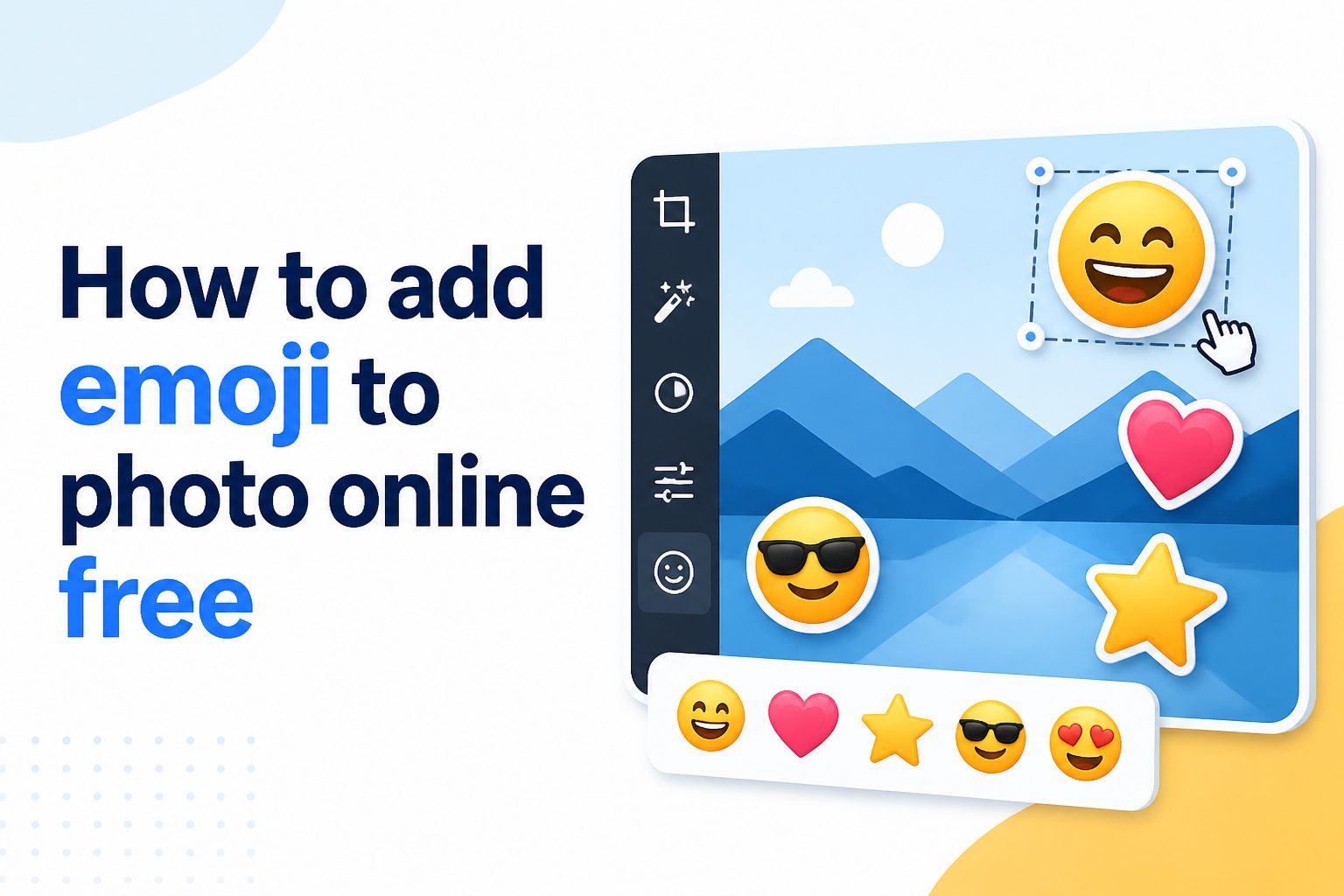
Learning how to add emoji to photo online free is a simple way to make pictures more expressive, playful, and attention grabbing without using expensive software. Whether you want to decorate a selfie, cover a face, create a funny social media post, add a mood to a travel picture, or make a quick birthday graphic, online emoji photo editors make the process fast and beginner friendly. You only need a browser, your image, and a basic idea of where the emoji should appear. In this guide, you will learn what emoji photo editing means, why people use it, how to do it step by step, which features matter, what mistakes to avoid, and how to make your final image look clean instead of cluttered.
What Adding Emoji To Photos Means
Adding emoji to a photo means placing small expressive symbols, icons, faces, objects, or reactions over an existing image. These emojis can be used as decoration, visual commentary, privacy covers, mood indicators, stickers, or creative design elements.
The process is usually done with an online photo editor. You upload a picture, choose an emoji, place it on the image, resize it, rotate it if needed, and download the finished version. Most free tools work directly in a browser.
People often use emojis because they communicate emotion quickly. A laughing face, heart, fire symbol, sparkle, or party emoji can instantly change the tone of a picture without needing extra words or complex editing skills.
Emoji editing also helps casual creators make images suitable for social media, messaging apps, blogs, thumbnails, invitations, memes, and profile updates. It works well when the goal is speed, personality, and visual clarity.
The best results come from using emojis with intention. A well-placed emoji can improve a photo, while too many random emojis can make the image look messy. Good placement, size, contrast, and context matter.
Why Add Emoji To Photo Online Free
Free online emoji editors are useful because they remove the need for downloads, paid design tools, or technical editing knowledge. They are built for quick visual changes that still look polished when used carefully.
1. Fast Creative Editing
Online tools let you add emoji to a picture within minutes. This is useful when you need a quick birthday post, funny reaction image, event announcement, or casual social media update. You can experiment with different emoji styles without learning complex editing software.
2. Easy Social Media Personalization
Emojis help photos feel more personal on platforms where people scroll quickly. A simple heart, smile, sparkle, or celebration emoji can make a post feel warmer and more expressive. This works especially well for selfies, travel shots, food photos, and friend group pictures.
3. Simple Privacy Protection
Many people use emojis to cover faces, license plates, usernames, addresses, or private background details. This is not always as secure as proper blurring, but it is helpful for casual sharing when you want to hide something quickly before posting.
4. Better Visual Storytelling
An emoji can add context to a photo without requiring a long caption. For example, a coffee emoji can emphasize a morning routine, a plane emoji can suggest travel, and a trophy emoji can highlight achievement. This makes the image easier to understand at a glance.
5. No Software Installation
Because online editors run in a browser, you do not need to install a large app or use a powerful computer. This is convenient for students, small business owners, casual creators, and anyone using a shared device or limited storage space.
6. Useful For Quick Design Tasks
Adding emojis is not only for fun posts. It can also support quick design needs such as event flyers, story graphics, sale announcements, classroom visuals, and informal invitations. A free online editor can be enough when the design does not require advanced professional layout work.
How To Add Emoji To Photo Online Free
The exact steps vary by tool, but the general process is similar across most browser-based photo editors. Follow these steps to get a clean result without overcomplicating the edit.
- Choose A Free Online Editor: Open a browser-based photo editor that supports image uploads, emoji stickers, text elements, or graphic overlays.
- Upload Your Photo: Select the photo from your device and wait for it to load fully before making changes.
- Find The Emoji Tool: Look for a stickers, elements, graphics, or emoji option inside the editor menu.
- Select The Right Emoji: Pick an emoji that matches the mood, subject, or message of your photo.
- Place The Emoji Carefully: Drag the emoji to the right spot and avoid covering important parts of the image unless privacy is the goal.
- Resize And Rotate: Adjust the size and angle so the emoji feels naturally placed rather than randomly dropped on top.
- Review The Whole Image: Zoom out and check whether the emoji improves the photo, distracts from it, or needs better spacing.
- Download The Final Photo: Export the edited image in a suitable format, usually JPG for everyday sharing or PNG for cleaner graphic quality.
Choosing An Online Emoji Photo Editor
The right editor should be simple, stable, and flexible enough for the type of photo you want to create. Before using any free tool, check the features that affect editing quality and convenience.
- Emoji Library: A good editor should offer common faces, symbols, objects, hearts, arrows, celebrations, and social-style stickers.
- Easy Controls: You should be able to drag, resize, rotate, duplicate, and delete emojis without confusion.
- Export Quality: The downloaded image should stay clear and not look blurry, compressed, or heavily watermarked.
- Mobile Support: If you edit from your phone, the editor should work smoothly on a small screen.
- Privacy Awareness: Use tools carefully when uploading personal photos, especially images of children, documents, or private locations.
- No Forced Signup: For quick edits, a tool that works without creating an account is usually more convenient.
Best Practices For How To Add Emoji To Photo Online Free
Good emoji editing is about balance. The goal is to make the photo clearer, funnier, safer, or more expressive without making it feel crowded or low quality.
1. Match The Emoji To The Photo Mood
Choose emojis that support the emotion already present in the picture. A laughing face works well with a funny moment, while sparkles may suit beauty, fashion, or celebration photos. Random emoji choices can confuse viewers and weaken the message of the image.
2. Keep The Size Natural
An emoji should be large enough to see but not so large that it dominates the entire image. If it covers the main subject unintentionally, it can make the photo look amateur. Resize it based on the photo layout and viewing platform.
3. Use Clear Placement
Place emojis where they add meaning or balance to the composition. Corners, empty background areas, speech-like positions, and privacy areas often work well. Avoid placing emojis over eyes, hands, food, products, or text unless that is the purpose of the edit.
4. Limit The Number Of Emojis
Using too many emojis can make a picture look noisy. One to three well-chosen emojis are usually enough for most social posts. More can work for party designs or memes, but each emoji should still have a reason to be there.
5. Check Contrast And Visibility
Some emojis disappear against busy or colorful backgrounds. If the emoji is hard to see, move it to a cleaner area, increase its size slightly, or choose a stronger symbol. Visibility matters because viewers often see photos on small phone screens.
6. Export In The Right Format
Use JPG for regular photos and PNG when your image includes sharper graphic elements or text. Before sharing, open the downloaded file and check that the emoji edges, colors, and overall photo quality still look clean after export.
Common Emoji Photo Editing Mistakes To Avoid
Adding emojis is easy, but small mistakes can make an image feel rushed. Avoid these common problems if you want a cleaner and more intentional result.
1. Adding Too Many Emojis
A crowded image can distract from the original photo and make the message harder to understand. Instead of filling every empty space, choose the strongest emoji and place it where it adds the most value. Simplicity usually looks more polished.
2. Covering Important Details
Unless you are hiding private information, avoid covering faces, products, signs, food details, or meaningful background elements. Viewers should still understand what the photo is about. Good editing supports the subject instead of blocking it unnecessarily.
3. Ignoring Photo Quality
Some free editors reduce image quality during export. If the final photo looks blurry or pixelated, try a different export setting or use a higher resolution original. Starting with a clear image gives the emoji edit a better foundation.
4. Choosing The Wrong Emoji Style
Different platforms and editors may display emojis in slightly different styles. A flat emoji, sticker-like emoji, or glossy emoji can change the overall look. Try to keep the style consistent so the final image does not feel mismatched.
5. Forgetting Mobile Viewing
Most edited photos are viewed on phones, so small details may disappear. Before posting, preview the image at a smaller size. If the emoji is unclear, awkwardly placed, or too close to an edge, adjust it before downloading the final version.
6. Using Emojis Without Purpose
An emoji should help the viewer understand the emotion, joke, privacy choice, or design idea. If it does not add anything useful, it may weaken the image. Intentional editing often looks better than decoration added only to fill space.
Examples Of Adding Emoji To Photos Online Free
Examples make it easier to see how emoji editing works in real situations. These ideas can help you choose the right emoji and placement for different types of images.
1. Covering A Face In A Group Photo
If someone does not want to appear in a shared picture, you can place a smiley, heart, or sunglasses emoji over their face. Make sure the emoji fully covers the face and does not leave identifying details visible around the edges.
2. Decorating A Birthday Picture
Party emojis, cake icons, balloons, hearts, and confetti symbols can make birthday photos feel more festive. Place them near open background areas or around the subject, but avoid covering expressions, candles, gifts, or other important details in the scene.
3. Creating A Funny Reaction Image
A single laughing, shocked, crying, or thinking emoji can turn a normal photo into a reaction image. This works best when the emoji supports the expression or situation already shown in the picture, making the joke clear without extra explanation.
4. Enhancing A Travel Photo
Travel photos can work well with plane, map, sun, mountain, beach, or location-style emojis. Use them sparingly so the destination remains the main focus. A small emoji near the corner can add personality without turning the photo into a sticker collage.
5. Making Food Photos More Expressive
Food pictures can be improved with fire, heart eyes, chef, sparkle, or thumbs-up emojis. The emoji should not cover the food itself unless it is part of the joke. Placing it near the plate or in an empty area usually works better.
6. Improving Event And Invitation Graphics
For casual event images, emojis can highlight the theme, such as music notes for a concert, stars for a party, or a calendar symbol for an announcement. Keep the design readable, especially if the photo also includes text or event details.
Advanced Emoji Photo Editing Tips
Once you know the basics, a few advanced choices can make your edited photos look more intentional. These tips help improve style, clarity, and overall visual quality.
1. Use Emoji Placement To Guide Attention
Emojis can guide the viewer toward the main subject when placed thoughtfully. For example, an arrow or sparkle near a product, person, or detail can draw attention. Keep the placement subtle so it supports the image instead of taking over.
2. Combine Emojis With Short Text
Some online editors let you add both emojis and text. A short phrase with one emoji can create a stronger message than several symbols alone. Keep the text brief, readable, and aligned with the emoji so the design feels organized.
3. Match Emoji Colors With The Photo
Color harmony can make an edit look cleaner. If the photo has warm tones, hearts, sun, fire, or yellow emojis may feel natural. If the photo is cool or minimal, choose simpler symbols and avoid overly bright elements that feel distracting.
4. Use Emojis For Visual Balance
If one side of a photo feels empty, a small emoji can balance the composition. This works especially well for story posts and square images. The key is to fill space lightly without making the image feel forced or overly decorated.
5. Save An Unedited Copy
Before downloading or replacing files, keep the original photo unchanged. This gives you flexibility if you want to try another emoji, change the design, or create different versions for different platforms. A backup prevents accidental loss of the clean image.
6. Review Before Posting Publicly
Look closely at the finished photo before sharing it online. Check privacy, spelling if text is included, emoji placement, quality, and overall tone. A quick review helps you catch details that may look fine during editing but awkward after export.
When To Use Free Online Emoji Editing
Free online emoji editing is helpful in many everyday situations, but it is not the best answer for every image. Knowing when to use it helps you choose the right level of editing.
1. Best For Casual Social Posts
If you are creating a quick post for friends, family, or followers, free online emoji editing is usually enough. It gives you speed and personality without requiring design experience, making it ideal for stories, messages, profile updates, and informal announcements.
2. Good For Quick Privacy Covers
Emoji overlays are useful when you need to hide a face or minor detail before casual sharing. However, for sensitive documents, legal images, or serious privacy concerns, use stronger editing methods because a simple emoji may not always be secure enough.
3. Useful For Memes And Reactions
Emoji editing works very well for memes because emojis communicate emotion instantly. A surprised face, crying-laughing symbol, or thinking emoji can make the punchline clearer. Keep the edit simple so the joke remains easy to understand at first glance.
4. Less Ideal For Professional Branding
For polished business campaigns, product images, or formal brand visuals, emojis should be used carefully. They can make a brand feel friendly, but overuse can reduce professionalism. If the image represents a serious offer, keep the design restrained.
5. Helpful For Teaching And Classroom Visuals
Teachers, students, and trainers can use emojis to highlight ideas, mark emotions, or make learning materials more engaging. A few symbols can help younger audiences connect with the image, especially when the content is informal or activity based.
6. Best When Speed Matters
Use a free online editor when you need a finished image quickly and the edit is simple. If the project requires detailed retouching, layers, masking, or print-quality design, a more advanced editor may be a better choice.
Frequently Asked Questions
Can I Add Emoji To Photo Online Free Without Downloading An App?
Yes, many browser-based editors let you upload a photo, add emojis, adjust placement, and download the final image without installing software. This is useful for quick edits on laptops, tablets, and phones, especially when you only need simple sticker-style changes.
Will Adding Emojis Reduce My Photo Quality?
It depends on the editor and export settings. Some free tools compress images more than others. To keep quality higher, start with a clear photo, avoid repeated downloads and uploads, and choose the best available export option before saving the final version.
Can I Use Emojis To Cover Someone’s Face?
Yes, emojis are commonly used to cover faces in casual photos. Make sure the emoji is large enough and placed accurately. For serious privacy protection, consider stronger methods because basic overlays may not be suitable for highly sensitive or personal images.
What Emojis Work Best On Photos?
The best emojis depend on the image mood and purpose. Hearts, sparkles, laughing faces, sunglasses faces, fire, stars, party symbols, arrows, and check marks are popular choices. Pick one that supports the message instead of adding random decoration.
Can I Add Multiple Emojis To One Photo?
Yes, most online editors allow multiple emojis on one image. However, it is better to use a small number unless you are making a meme, party graphic, or playful collage. Too many emojis can make the photo look crowded and less professional.
Is Online Emoji Photo Editing Good For Business Images?
It can be useful for casual business posts, social stories, announcements, and friendly brand content. For formal ads, product photos, or professional campaigns, use emojis carefully. The edit should match your brand tone and should not distract from the main message.
Conclusion
Adding emojis to photos online for free is a quick and practical way to make images more expressive, fun, private, or social-media ready. With the right editor, you can upload a photo, choose an emoji, place it carefully, adjust the size, and export a clean final image.
The best results come from using emojis with purpose. Choose symbols that match the photo, keep the layout simple, protect important details, and review the final image before sharing. A small, thoughtful emoji edit can make a photo feel clearer, warmer, and more memorable.